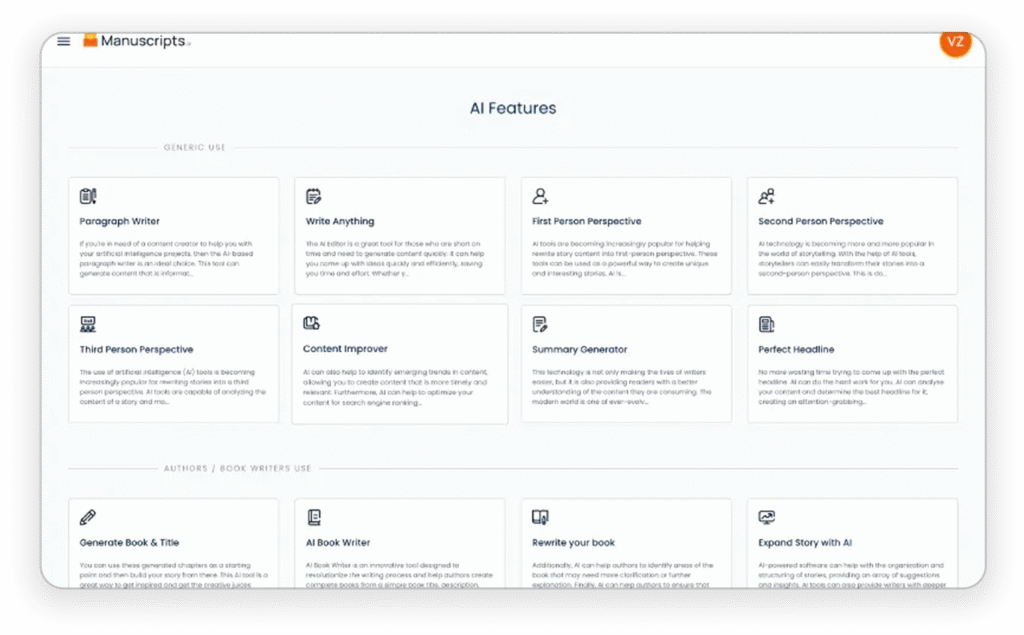
Our voice change feature utilizes advanced AI technology to seamlessly transition content from active to passive voice and vice versa. This innovative tool is designed to assist writers in easily adjusting the tone and perspective of their writing, providing greater flexibility and creativity in crafting engaging and varied content.
With just a few simple clicks, our AI-powered feature can intelligently analyze and restructure sentences, maintaining the original meaning while shifting the voice to achieve the desired effect. Whether you need to convey a sense of authority and assertiveness through active voice, or create a more detached and neutral tone with passive voice, our feature enables effortless transformation at your fingertips.
By offering this powerful voice change capability, writers can enhance the impact and readability of their work, appealing to diverse audiences and achieving specific communicative objectives. This feature is a valuable asset for content creators, educators, and professionals seeking to elevate the quality and style of their writing with ease and efficiency. Experience the transformative potential of our voice change feature and unlock a new world of creative possibilities in your writing endeavors.